Ingenious.V12 uses an effective database system for the administration of data. In order to retrieve records, you have two search possibilities available to you. One is a quick search in which the complete search is made quickly and easily. The other is a detail search that allows you to master complex searches
Joker symbols
The * is a so-called joker symbol. It displays an arbitrary number of an arbitrary symbol. Ingenioius.net has two different joker symbols available. The familiar * (⇧ + *) and the @ (Alt Gr + Q). The input and effectiveness of the two joker symbols is the same and there is no difference whatsoever. The joker symbols can also be mixed with @ and *combined.
The quick search function
Due to the fact that a quick search is the most employed search method, it is displayed in each module window and therefore easily and quickly accessible.
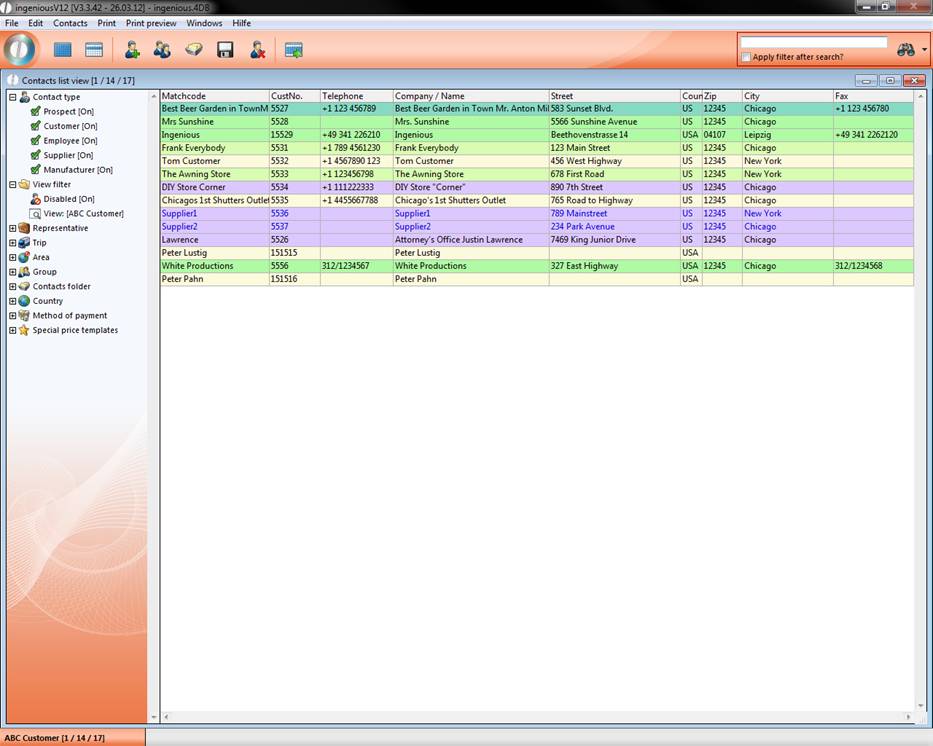
Quick search in the “Customer” area module window
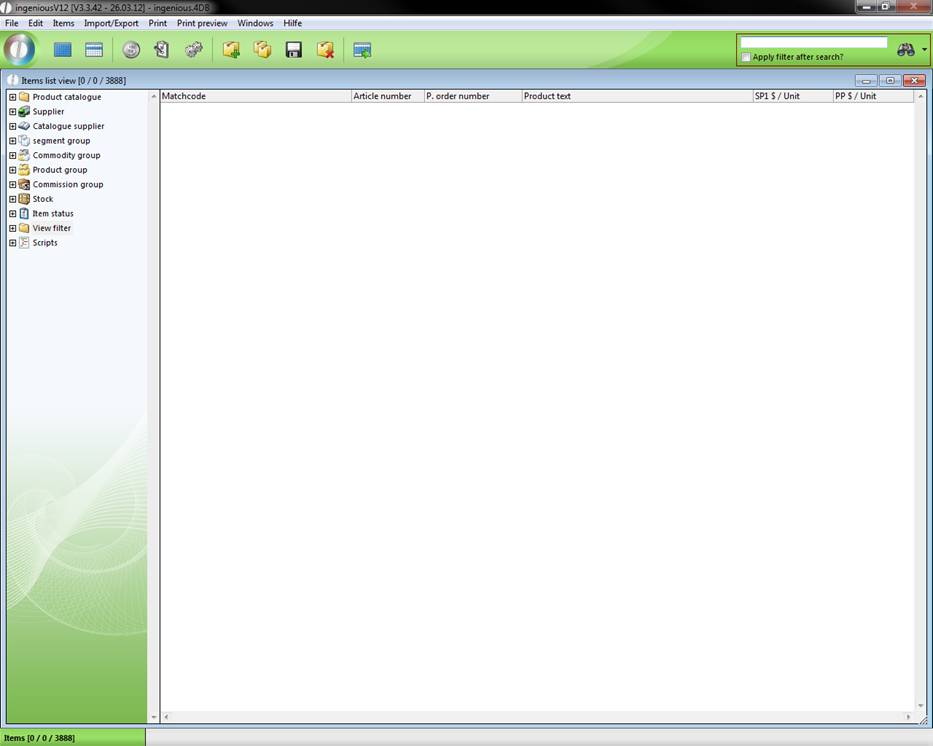
Quick search in the “Article” area module window
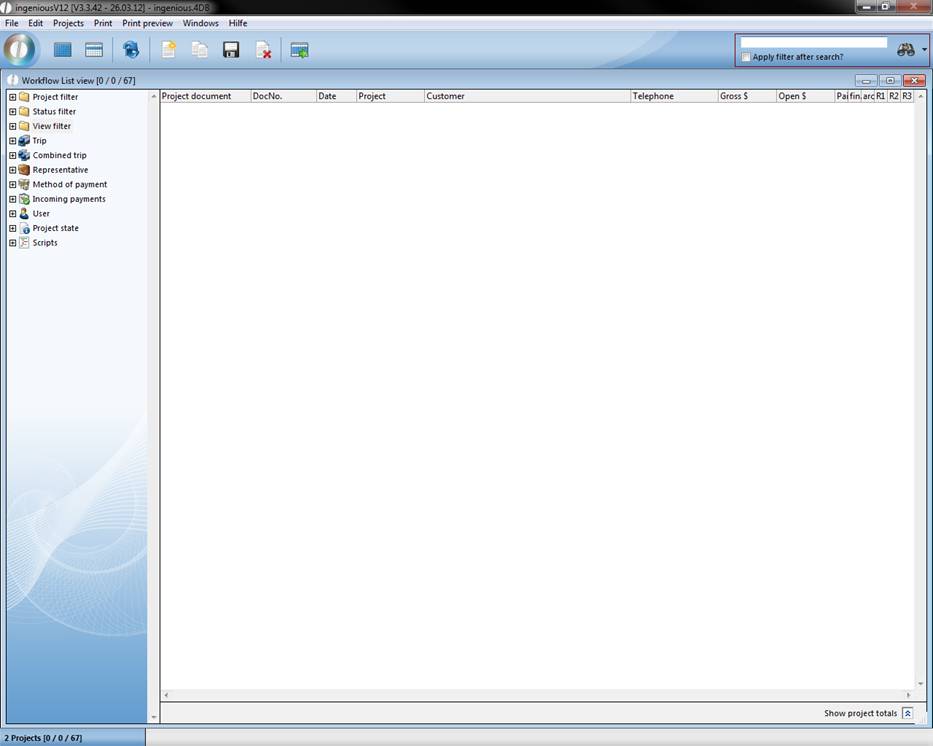
Quick search area in the module window of the workflow module
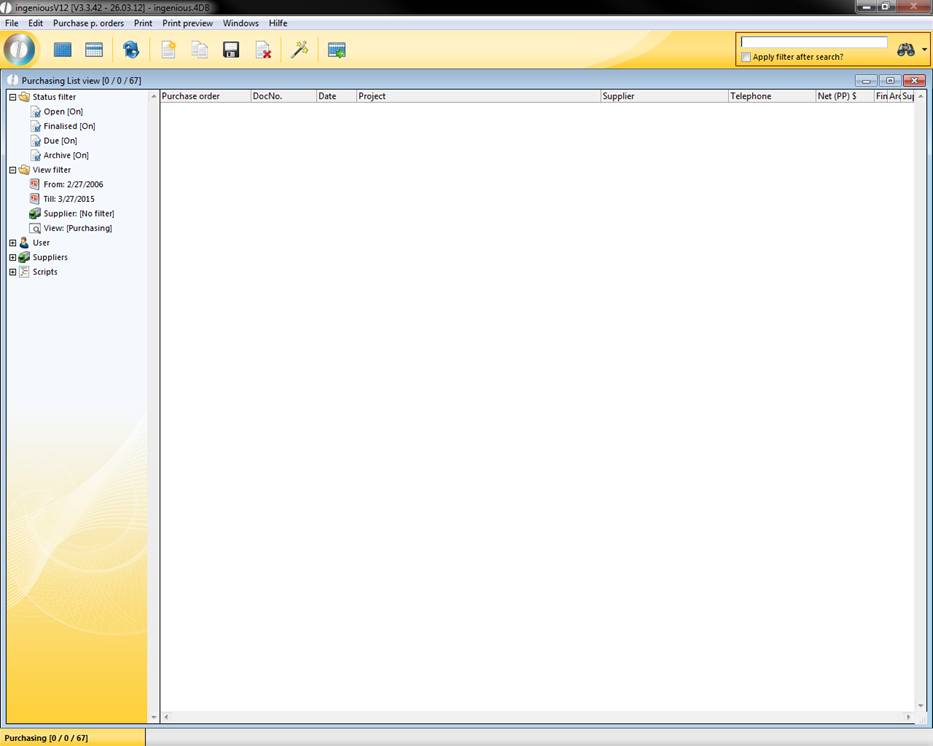
Quick search area in the “Purchasing” module window
The quick search (framed in red in the illustration) is comprised of the entry field and the action button  . You can search for all relevant data in the modules. In the program settings in the category “Search” you can define in which fields the search should be performed.
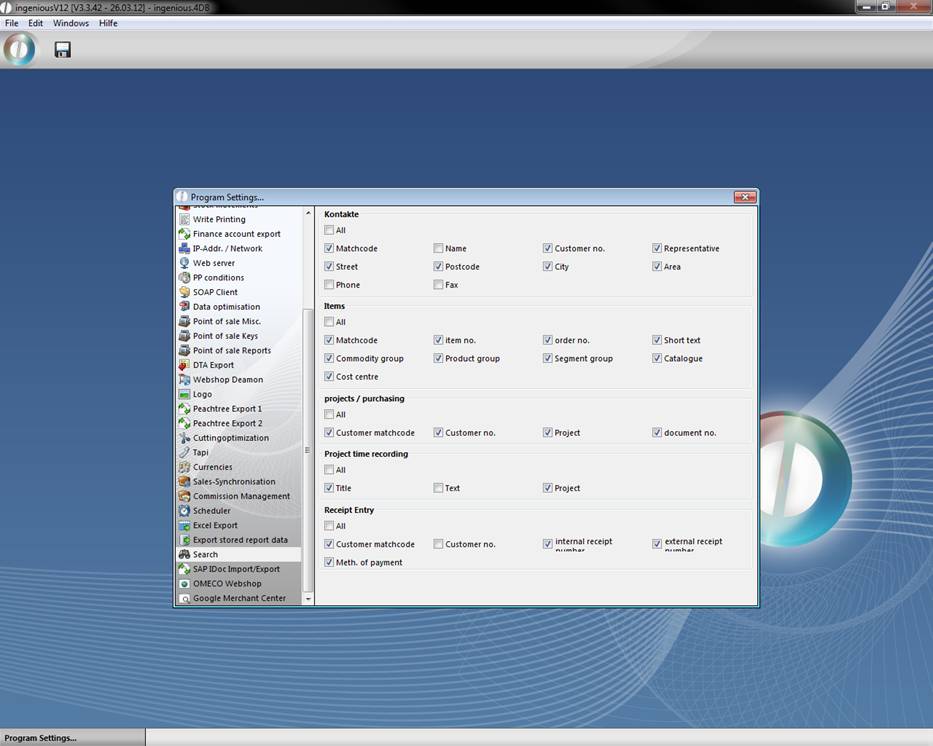
Practice with quick search
1. For your quick search enter in the search field “Leipzig”. It doesn’t matter if you write “leipzig”, “Leipzig” or “LEIPZIG”, because the quick search, as well as the detail search, ignores upper and lower case. When you activate the field “Apply filter after search?”, you only get the contacts, that correspond to the filter settings. In this example we only want to get contacts of the type “Customer”.
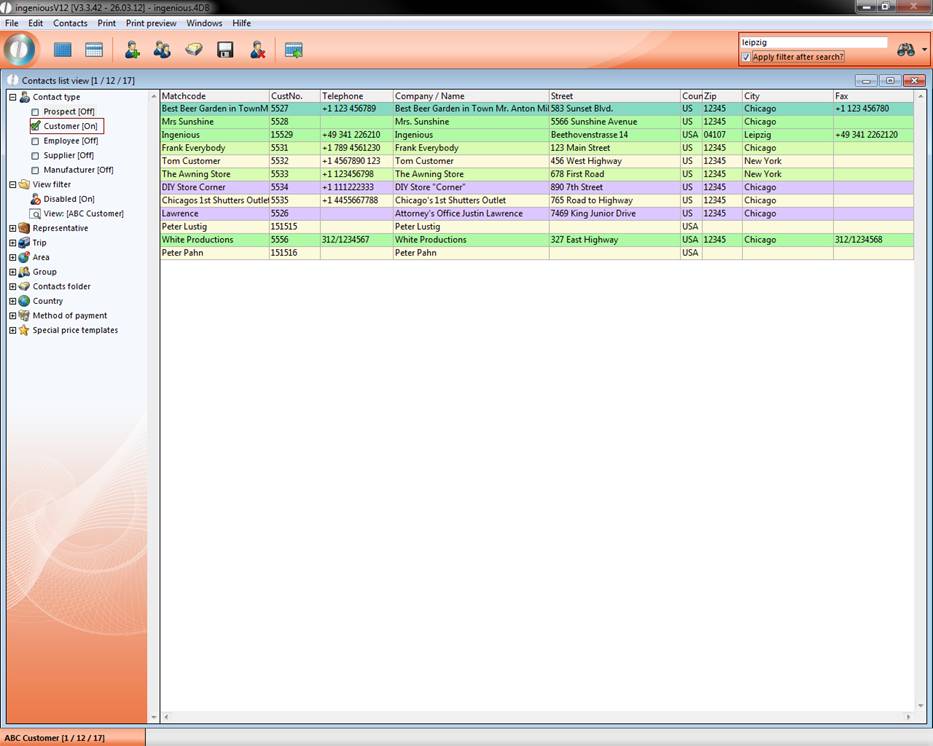
2. After confirming the search by pressing the return key or clicking the action button the search will be performed.
The detailed search function
The detail search is also easy to operate despite its higher effectiveness. With the little arrow next to the action button you get to the detail search.
The buttons in the menu bar for the detail search
 Create new search
 Confirm and save search criteria
 Delete search
 Import search
 Export search
 Toggle between search and configuration module
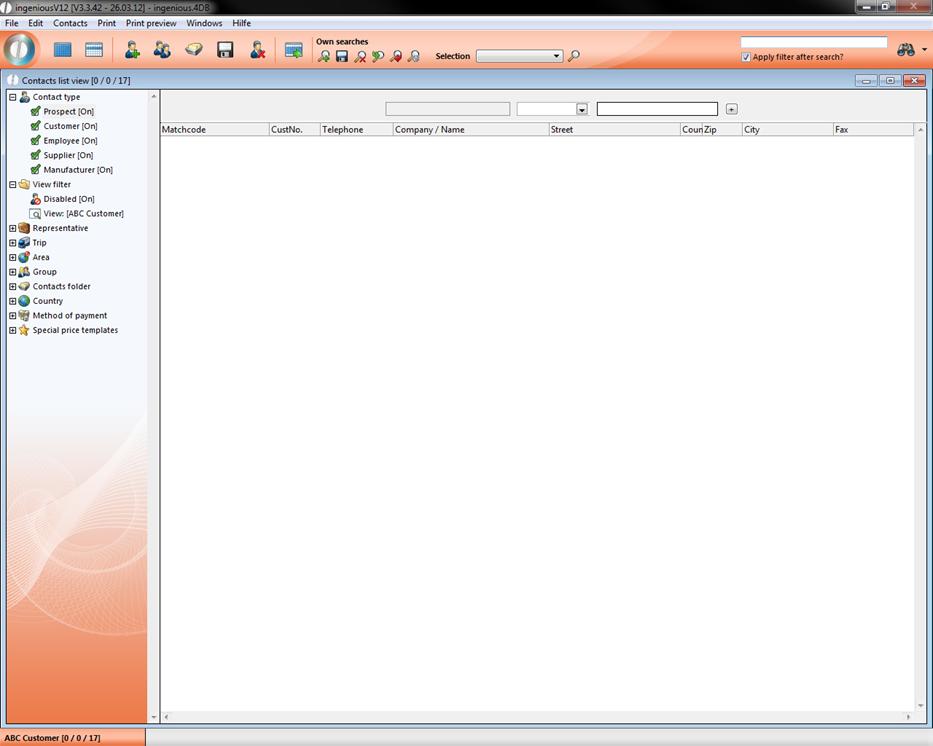
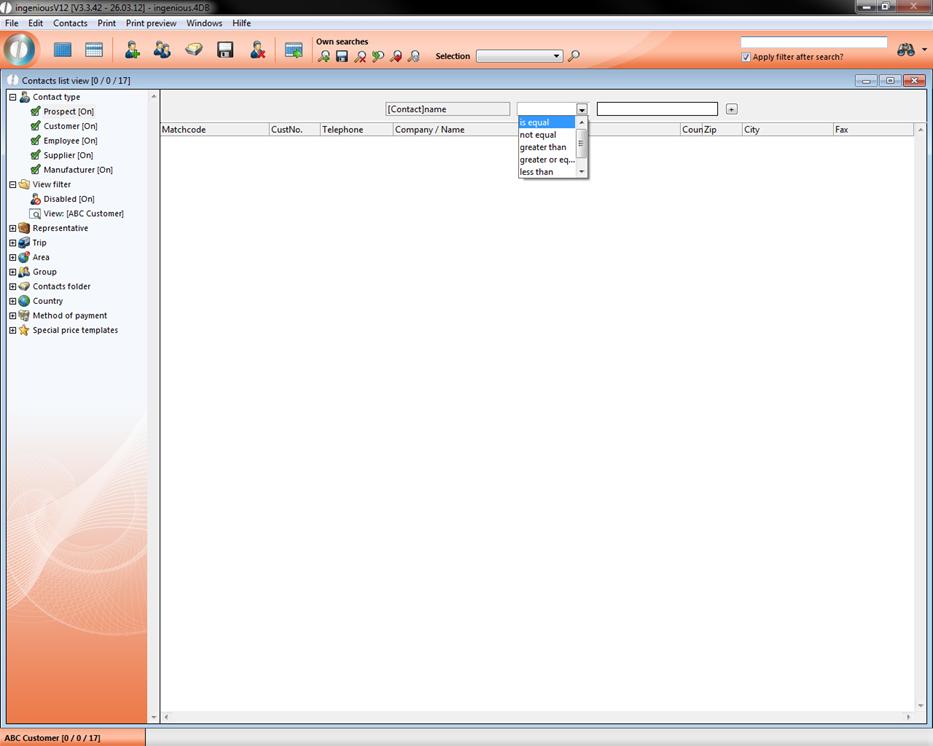
The detail search is really efficient because of the six comparative operators “is equal”, “not equal”, “greater than”, “greater or equal”, “less than” and “less or equal”. With the help of these comparative operators you can add conditions to your search task. Compared to the quick search the advantage of the detail search is, that you can search for multiple values. For instance you can search with the quick search after all contacts, having a name beginning with “A”. With the detail search you can search for all contacts having a name beginning with “A” and coming from the city “Leipzig”. This is called “combined search”. Only the records fulfilling all conditions are listed.
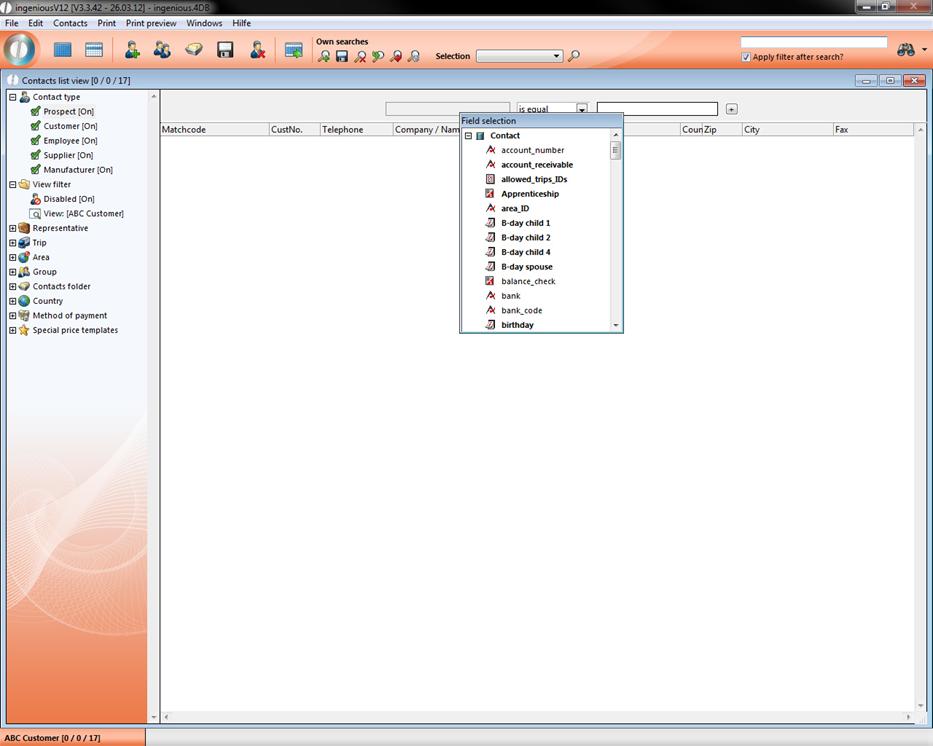
With a double click in the first field of the detail search you open the available criteria for the search. These differ corresponding to the module.
In the next field you can choose between the six already described conditions.
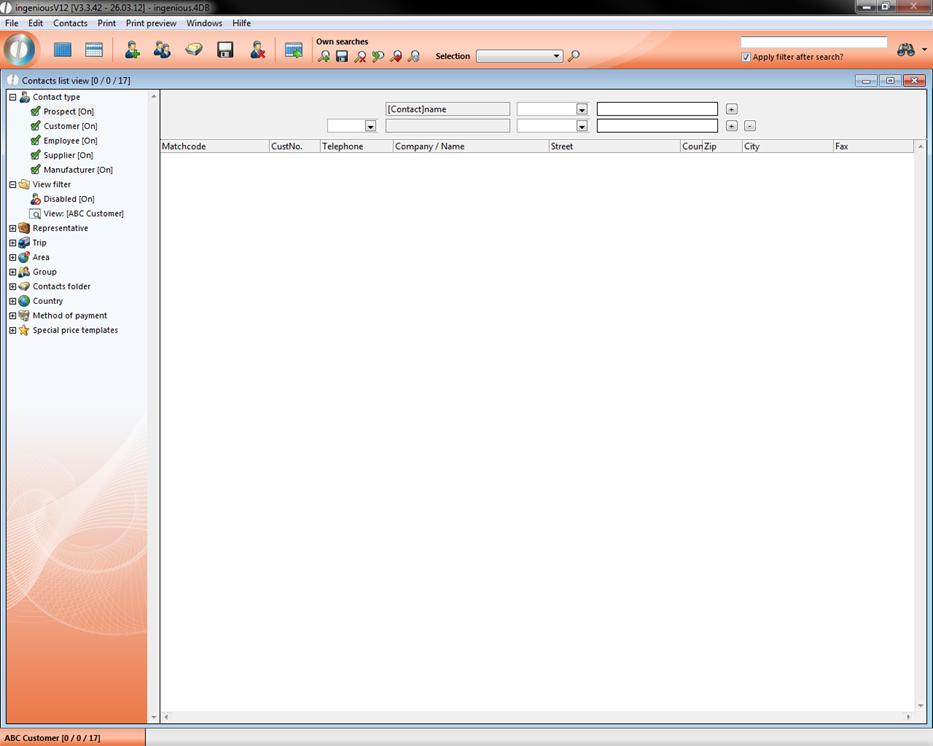
Enter your search value in the next field. With a click on  a new search option bar will open up. If you want to remove a line, just click on the
  .
.
Practice for the detail search
1. Open the detail search editor in the module “Contacts” by clicking on the little arrow next to the action button  .
.
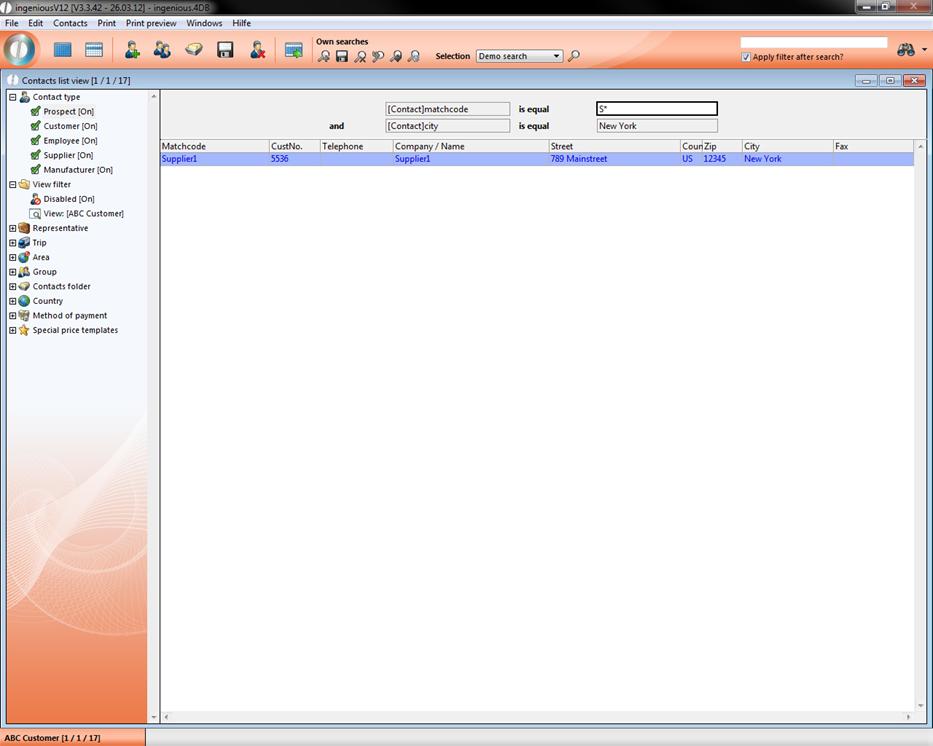
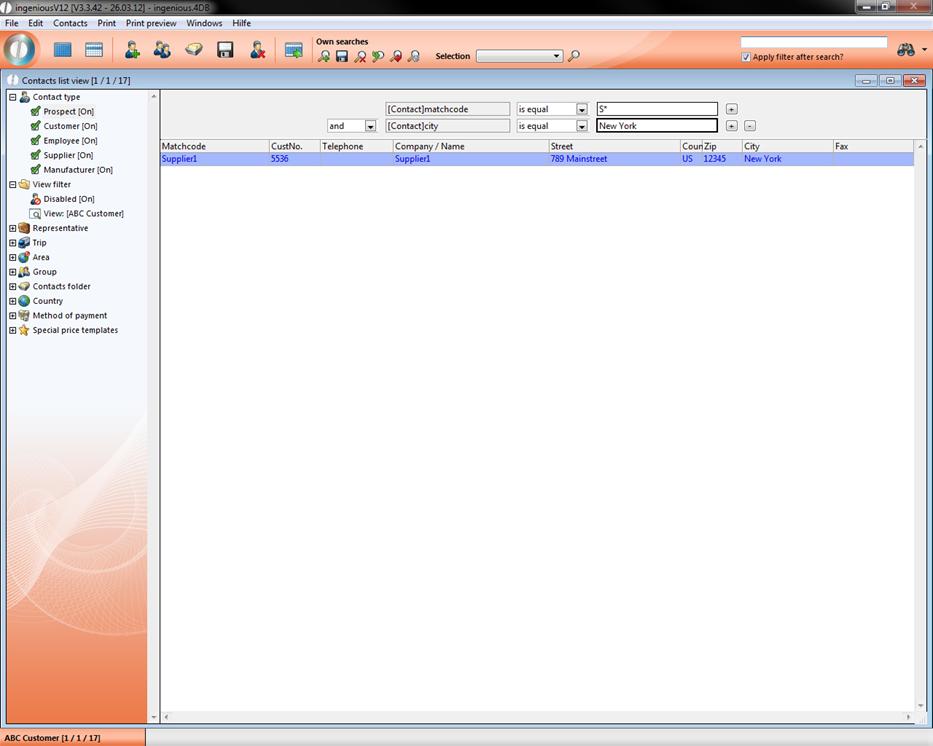
2. Double click the firs (grey colored) field in the detail search bar. Choose the entry “matchcode”, in the condition field “is equal” and enter in the last field “S*”.
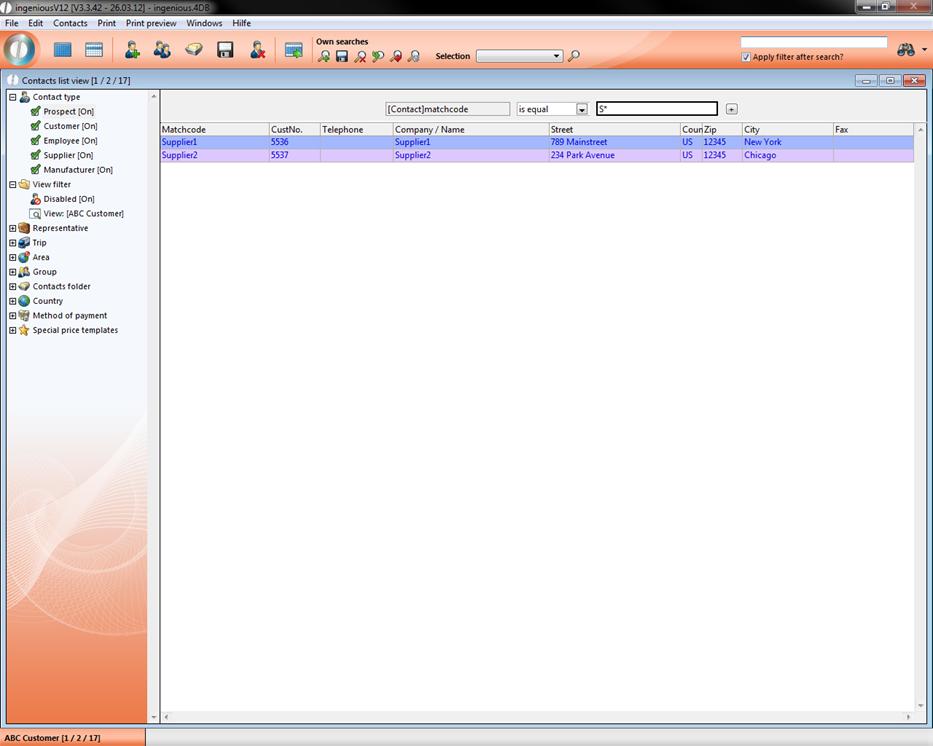
3. With a click on the button  in the icon bar all results will be displayed having a matchcode beginning with “S”.
4. Extend the search by clicking on .
5. Select “and” in the first drop down menu; “City” as the search criteria; “is equal” as the condition and enter the value “New York” in the value field. By clicking again, all records are listed coming from the “New York” and having a matchcode beginning with “S”.
Saving queries
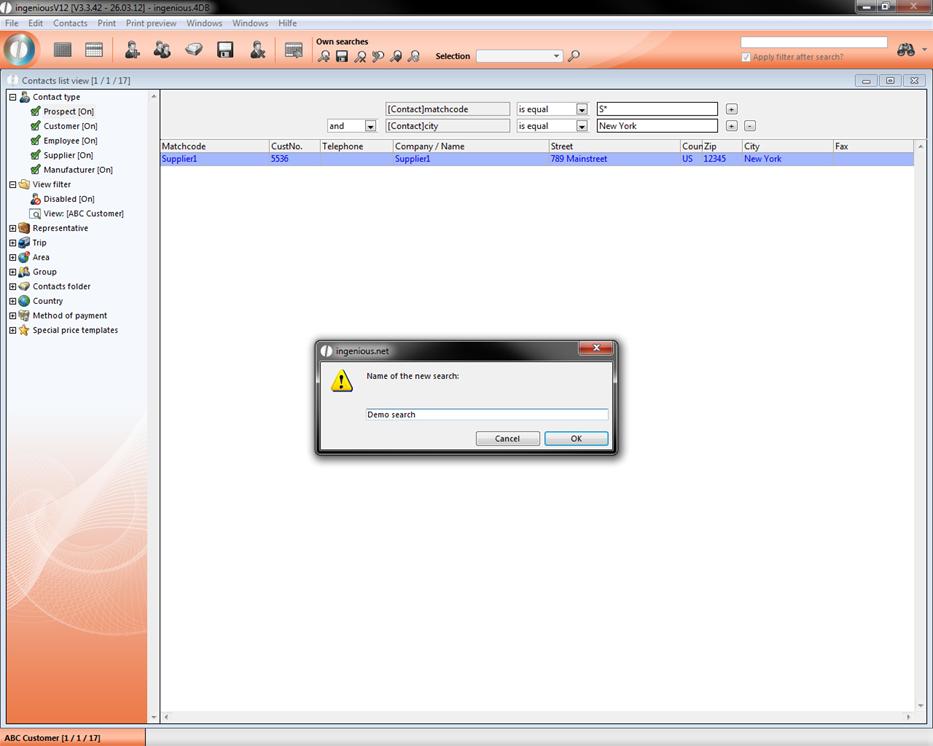
Another advantage of the detail search is, that you can save queries. To do so, just click on in the icon bar “Own searches”. Enter the name of your query:
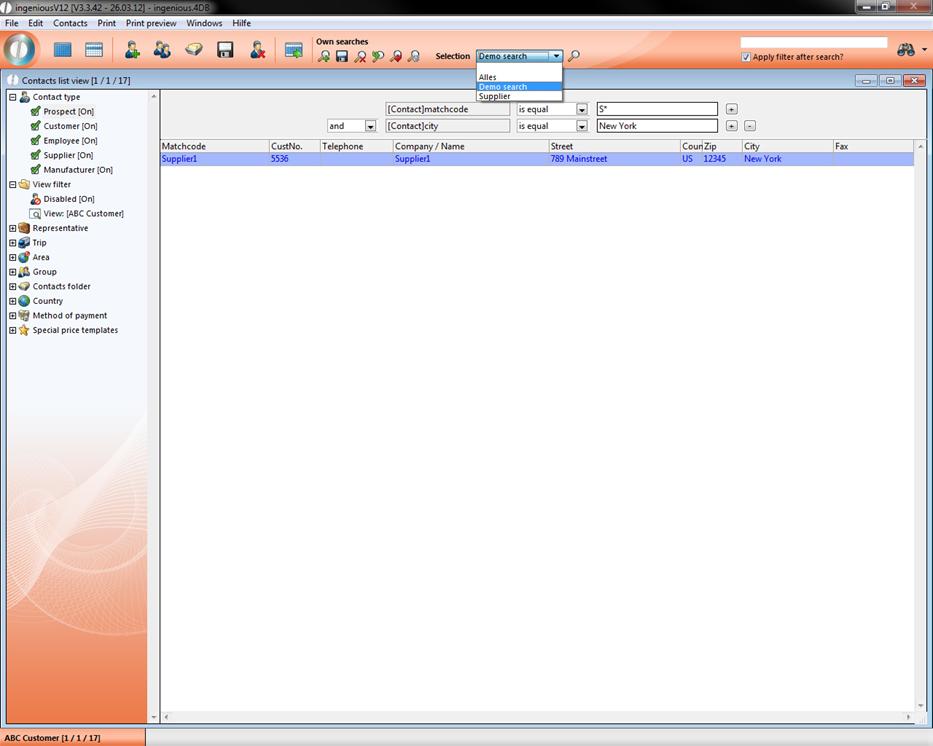
Now you can select it in the drop down field “Selection” in the icon bar to load it.
You can also export your query as a xml file or import an already saved one.
By clicking you can toggle between the configuration mode and normal mode. In the configuration mode you can’t change any search criteria.
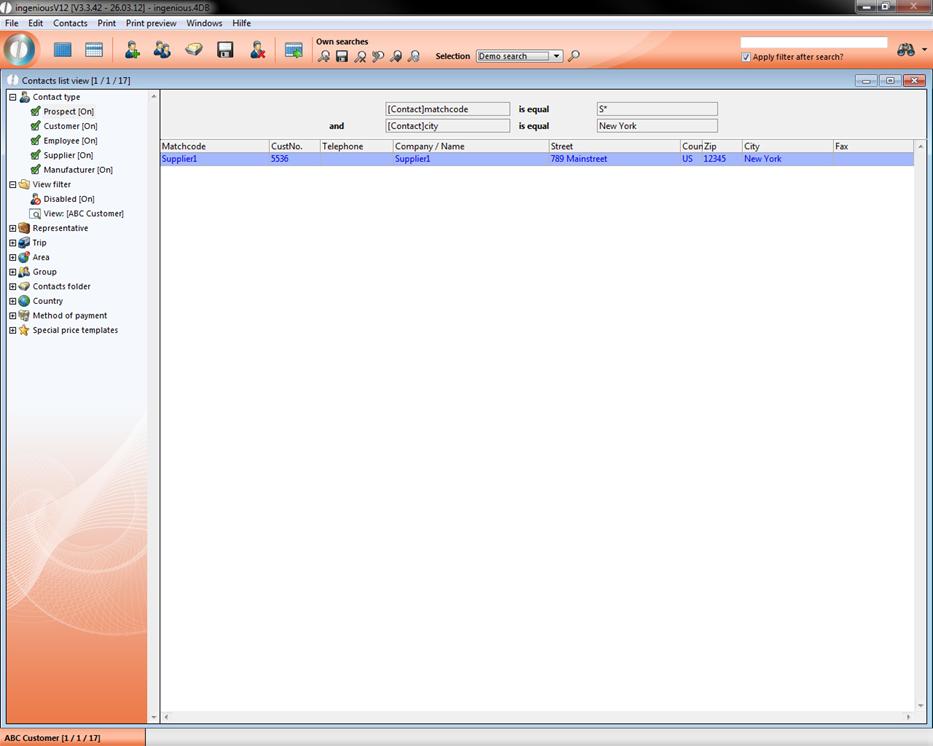
If you add a question mark in front of an entered value (e.g. ?S*), you are able to modify it in the configuration mode.